Versions
A version is how you or your band play and sing a song: its order, key, capo and tempo, and chords, words or lines changed on some passes. The song itself never changes, so you can make your version of songs you can’t edit, like global catalogue songs. (A translation is something else: a song of its own, linked to its original - see Linked songs.)
Making one
Section titled “Making one”On a song’s Versions tab, give it a name (“Sunday band”, “Acoustic”) and choose who it’s For: you, or a team you’re an admin of. It starts as the song’s order, in its key.
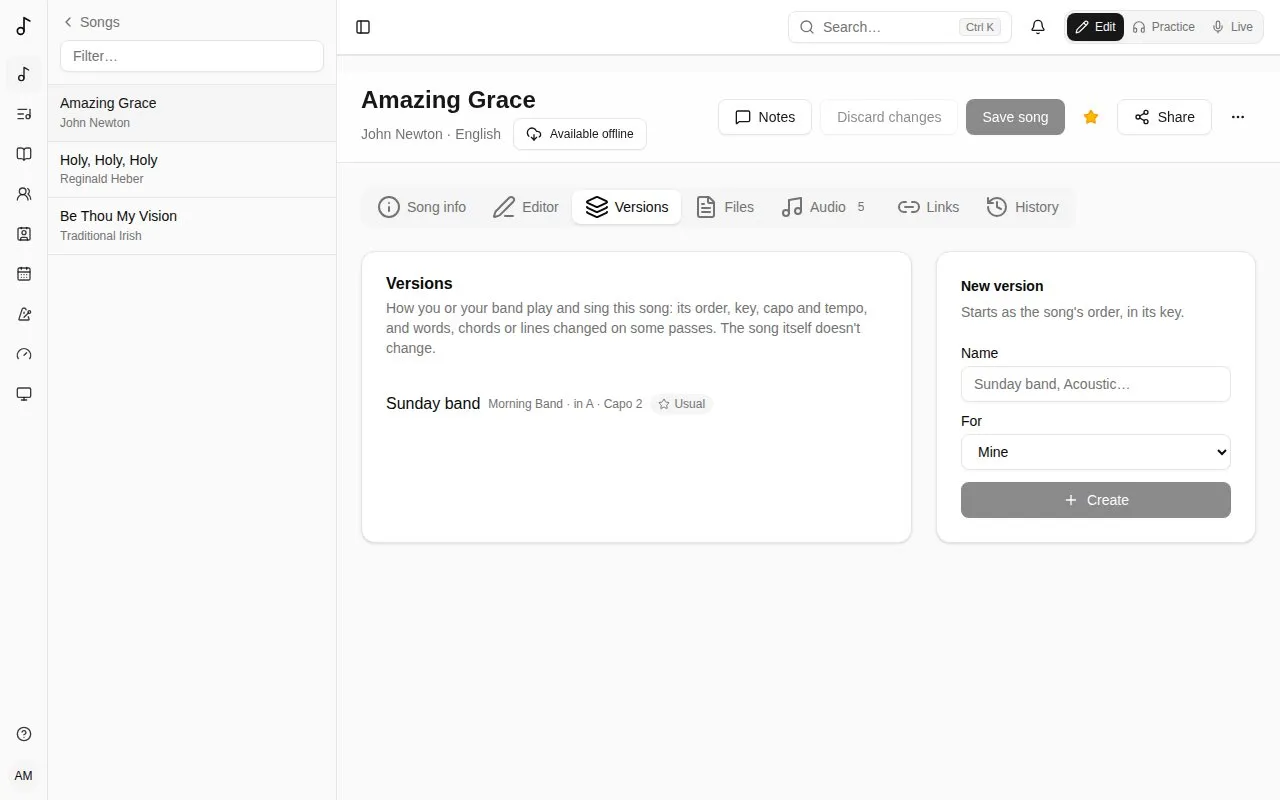
A team’s versions are seen by the team’s members and changed by its admins.
Editing it
Section titled “Editing it”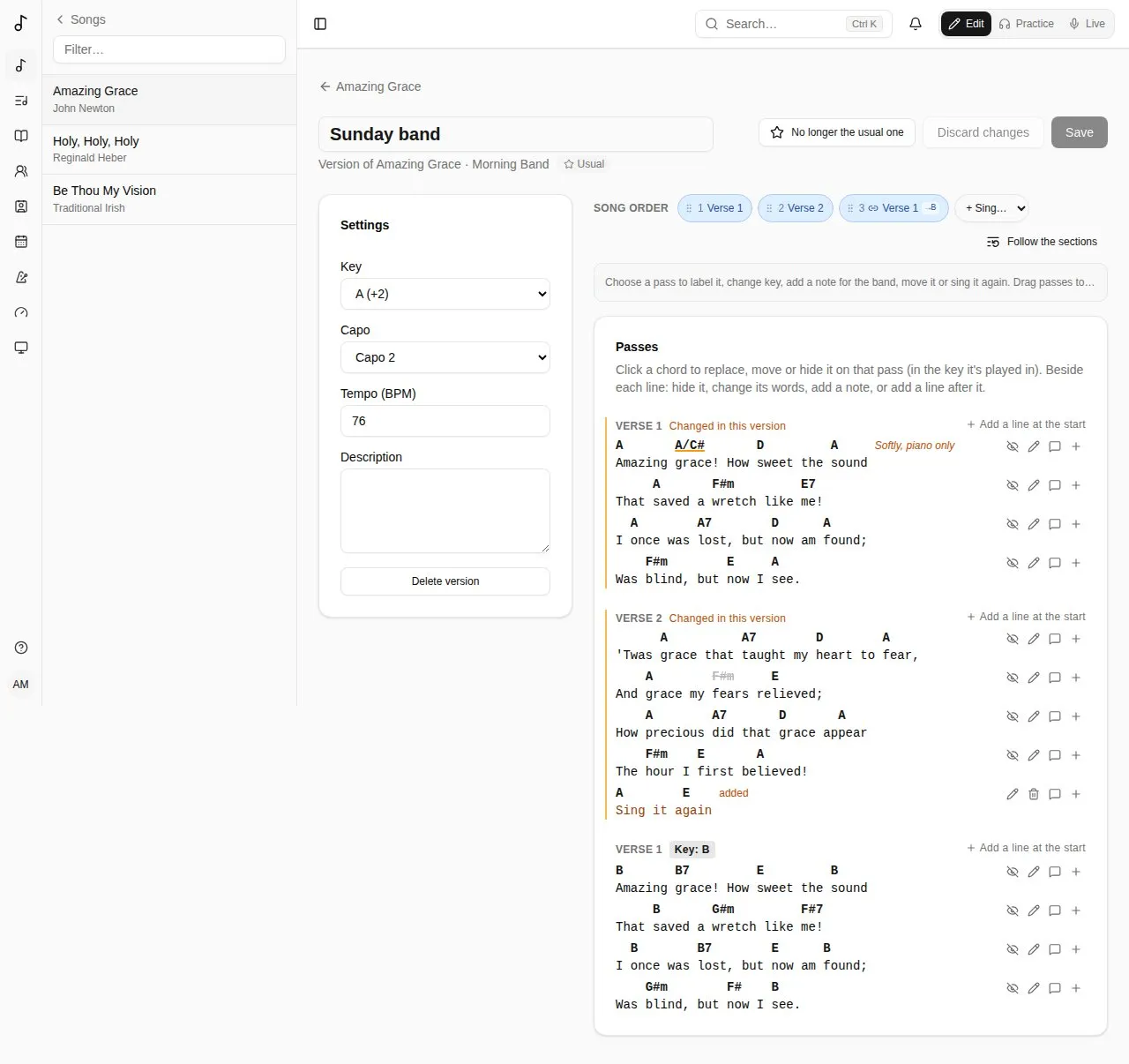
- Settings - its Key (from the song’s), Capo, Tempo and a description.
- Song order - which passes are played, in what order, with key changes and notes, like the song’s own order.
- Passes - the chart as this version plays it, in the key each pass is played in:
- click a chord to replace it on that pass (type it in the key it’s played in), hide it for the band, or put it back as in the song. Move puts it on another character: click the one it goes on;
- beside each line, hide the line on that pass, add a note to it (“Softly, piano only”), or change the words on that pass - a line sung in another language, “we” for “I” on the last chorus. The chords stay on the same characters (pulled in to the end of a shorter line; Move them if needed), and the line is marked words changed. Back to the song’s words undoes it;
- add a line after any line, or at the start of the pass: a tag line, a spoken intro. Type it with its chords in brackets, before the word or syllable they’re on:
[G]Sing it a[D]gain. It’s marked added; its chords can be replaced, moved or hidden like the others, and beside it you edit or remove it.
Passes you’ve changed are marked Changed in this version, here and on the band’s charts. Save when you’re done.
The team’s usual version
Section titled “The team’s usual version”A team admin can make one of the team’s versions the team’s usual one for a song. When the song is added to one of the team’s sets, that’s the version it plays.
When the song changes
Section titled “When the song changes”If the song is edited after you last checked the version, the version editor says so. It keeps working meanwhile. Changes that point at something since removed from the song (a chord or line that’s gone) are listed on their pass: remove them, or leave them - they do nothing. Mark as checked once you’ve looked it over.
A version made when your own copy of a song was folded into the catalogue song (see Submitting to the global catalogue) plays the song as you had it, with its words changed and lines added the same way - and you edit them the same way too.
Your own view of a chart
Section titled “Your own view of a chart”When you open a song in a set, the My view bar changes the chart for you only:
- Hide chords - then tap a chord to hide it (one that’s too fast for you, say). Show hidden brings them back.
- Simpler chords - Gmaj7 shows as G, Bm7b5 as Bdim.
- No bass notes - D/F# shows as D.
Hidden and simpler chords are kept per song (and per version). Beside them, Display changes how every chart reads in the mode you’re in - chord names, colours, capo shapes, diagrams, the text and the columns: see Display.
Nashville numbers and chord colours
Section titled “Nashville numbers and chord colours”With Nashville numbers (1 4 5) under Chord names, each chord shows as its place in the key: in D, D is 1, Em7 2m7, D/F# 1/3, G 4 and A7 57; a chord from outside the key gets a flat or a sharp (Bb in C is b7). The rest of the chord is written as usual. Numbers count from the key each part is sung in, so after a key change they stay the same, and a capo doesn’t change them either. In a minor key they count from its own tonic: in Em, Em is 1m and G b3. A song without a key keeps its letters. Diagrams keep their letters too: they show a real chord to play.
With Roman numerals (I IV V), the case says what kind of chord it is: capitals for a major chord, lowercase for a minor or diminished one. In D, D is I, Em7 ii7, A7 V7, Bm vi, C#m7b5 viiø7 and C#dim vii°; an augmented chord gets + (I+), and a chord from outside the key a ♭ or a ♯ (Bb in C is ♭VII). A slash chord’s bass is a scale degree, as in Nashville: D/F# is I/3. Like the numbers, numerals count from the key each part is sung in, in a minor key from its own tonic (in Em, Em is i and G ♭III), and a capo doesn’t change them.
With Chord colours set to By chord type, each chord on the chart is coloured by what it sounds like: major green, minor blue, sus yellow, diminished (and m7b5) purple, augmented orange, dominant 7ths (G7, G9, G13) red. Power chords (G5) keep the usual colour.
Chord diagrams
Section titled “Chord diagrams”Choose Guitar, Ukulele or Piano under Chord diagrams in Chart display (or Instrument in the Display panel, for one mode), and the charts you read - in Practice, a set’s songs, Live and offline - show how to play their chords. They’re off until you choose; nothing ever covers the words, and the chart itself doesn’t move.
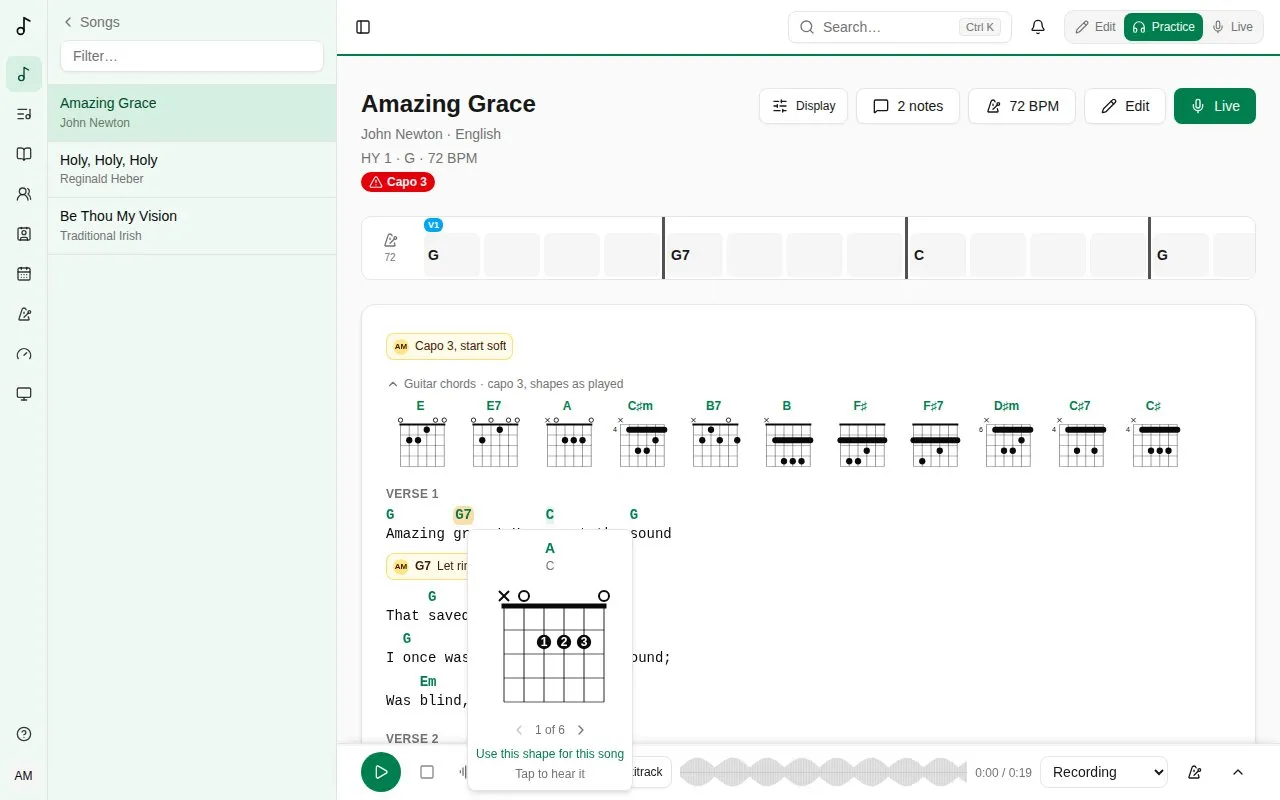
- At the top of the chart, the song’s chords as small diagrams, each once, in the order they come. Tap one to hear it strummed (down, then up on the next tap). The arrow beside Guitar chords folds them to a single line of names, remembered on the device.
- Tap a chord on the chart for its diagram, bigger, with the fingers to use. ‹ › go through the other ways to play it; tap the diagram to hear it. Use this shape for this song keeps the one shown for that chord in this song, for you only, on every device: the strip and the card show it first from then on. Back to the usual one undoes it. Other songs keep the usual shape.
- A diagram shows the strings up and down and the frets across: × is a string not played, ○ an open one, each dot a finger (its number in the bigger diagram), and a bar one finger across several strings. Near the nut, it’s drawn thick; further up the neck, the number on the left is the fret it starts at.
- With a capo, guitar diagrams are the shapes you play with the capo on (capo 2, shapes as played), whatever your With a capo setting shows on the chart. Ukulele diagrams are the chords as they sound.
- They follow everything else: the set’s key, a last-minute transpose in Live, a key change, Simpler chords and No bass notes. Every chord Songverse can read has a diagram, worked out on the device, so they work offline too.
Under Chord diagrams in Chart display, once an instrument is chosen: its tuning (guitar: EADGBE, drop D, DADGAD, open G, half a step down; ukulele: high G, low G, baritone) - the shapes are worked out for its strings - and Left-handed diagrams, drawn mirrored, the lowest string on the right.
With Piano, each chord is a small keyboard: the right hand’s keys as filled dots, near middle C, and the bass in the left hand as a ring (the root, or a slash chord’s bass: D/F# puts F# in the left hand). Tap one to hear it, the bass first. In the bigger diagram, ‹ › go through the inversions, and Use this voicing for this song keeps one for that chord in this song, as for a guitar. The capo doesn’t change a piano’s chords: they’re shown as they sound. Its options, under Chord diagrams in Chart display:
- Piano voicings - Smooth (the default): each chord in the inversion nearest the one before, so the hand hardly moves, as keyboard players voice them; or Root position: every chord from its root, easier to read.
- Hands - Both hands (bass in the left), or Right hand only - when a bassist plays the bass.
- Note names on the keys - In the bigger diagram only, Everywhere or Never.
In a set’s Hide chords mode, tapping a chord still hides it.