

Notes
A note is something to remember about a song: “Let ring” on a chord, “Hold it” on a word, “Big ending” on the last chorus, “Capo 3, start soft” on the whole song. You write it once, pin it where it belongs, and save it somewhere. Where it’s saved decides who sees it.
Adding a note
Section titled “Adding a note”On a song’s page in Practice, on a song of a set, and in Live:
- Right-click a chord, a word or a section’s name. On a touch screen, press and hold it.
- Or open Notes beside Display and choose Add a note, for the whole song.
The dialog says what the note goes on (On G7, On “grace”, On Chorus). Write the note, choose where to save it, then Save note.
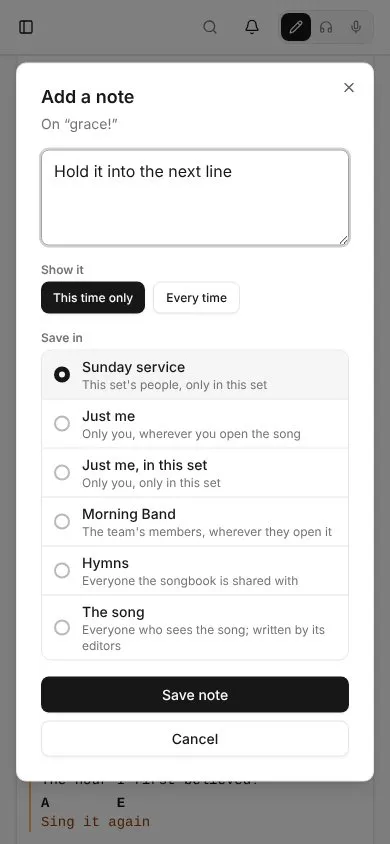
Inside a section sung more than once, Show it asks whether the note is for This time only (the default) or Every time. “Big ending” on the last chorus stays on the last chorus.
Where it’s saved
Section titled “Where it’s saved”Save in lists the places you can choose, each with who will see the note:
| Saved in | Who sees it | Where it shows |
|---|---|---|
| Just me | you | wherever you open the song |
| Just me, in this set | you | only in that set |
| A team | the team’s members | wherever they open the song |
| A songbook | everyone the songbook is shared with | wherever they open the song, while it’s in the songbook |
| A set | everyone who opens the set | only in that set |
| The song | everyone who sees the song | everywhere; only the song’s editors can save here |
The first choice is where you came from: a set’s song saves in that set, a song opened from a songbook saves in that songbook, anything else saves just for you. A song taken out of a songbook hides that songbook’s notes. They come back if the song is put back.
On the chart
Section titled “On the chart”Each note shows where it’s pinned:
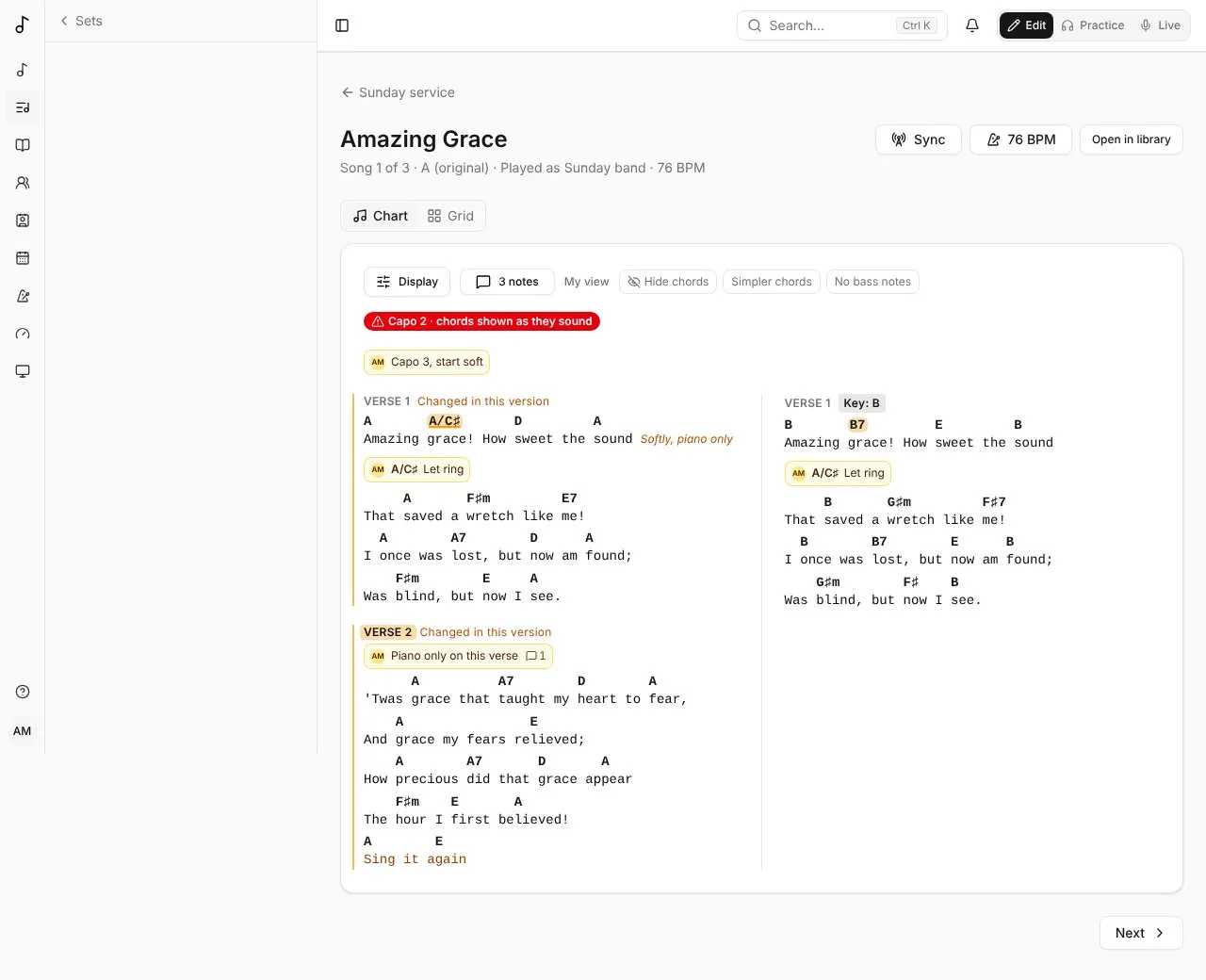
- the whole song’s notes above the chart;
- a section’s under its name;
- a line’s, a chord’s or a word’s under the line, with the chord or the word it’s about;
- notes between two sections after the first.
That’s the Standard way. In the Display panel, Notes > Where can put them Beside what they’re on (under the word or chord, the lines moving apart to make room) or in the Margin on the right of a large screen (each one numbered, the same number on what it’s on, a thin line leading to it; pointing at a note lights up what it’s on). Look, Size and Colour change how they look, from a card with the writer’s picture to plain text, and the presets (Standard, Clean, Margin, Stage) set them all at once. Each mode keeps its own.
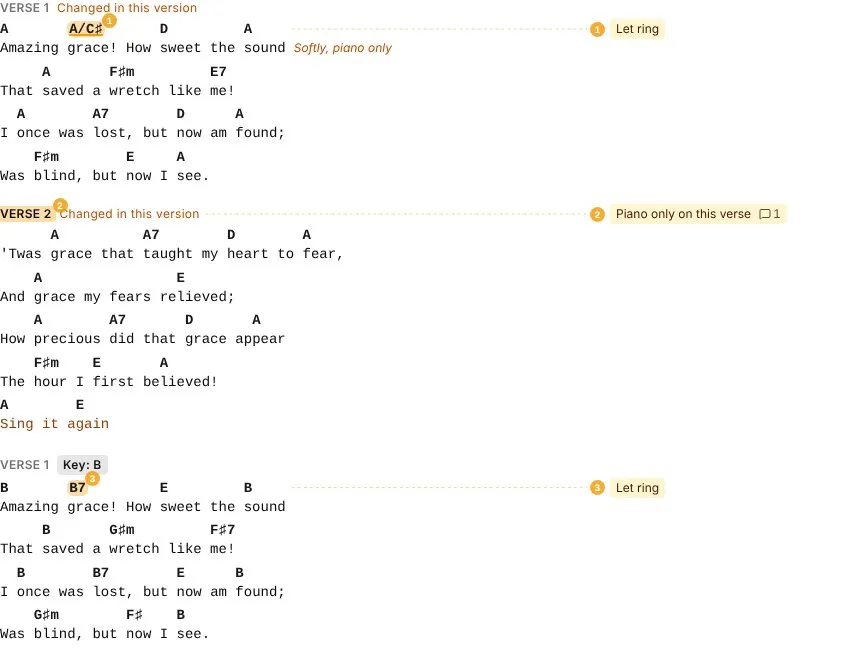
What a note is on is marked on the chart too: a chord is highlighted, a word underlined, a line gets a bar in the margin, a section its name highlighted. Marks in the Display panel turns the marks off, keeping the notes. Each note shows its writer’s picture or initials and how many replies it has. If what a note was pinned to is deleted, the note moves up: from a chord to its line, from a line to its section, from a section to the whole song. A small arrow says it moved. A note is never lost to an edit.
Replies
Section titled “Replies”Tap a note to open it, with its replies. Anyone who sees a note can Reply. The note’s writer, and everyone who has replied, gets a notification with a link back to it.
The person who wrote a note can Edit it, Resolve it, or Delete it with its replies. A resolved note leaves the chart but stays in its thread; Reopen brings it back. So can:
- a team’s admins, for the team’s notes;
- whoever can change a songbook, for its notes;
- the set’s leaders (its owner, or its team’s admins), for its notes;
- the song’s editors, for the song’s notes.
They can also edit or delete replies. Everyone else can change only their own replies.
Global admins can edit, resolve and delete any note and reply.
Moving a note
Section titled “Moving a note”When you edit a note you wrote (Edit), Save in shows where it’s saved now and the other places you could save it, as for a new note. Choose another place and Save: the note keeps its words, where it’s pinned and its replies, and now shows for the people of its new place. Someone who could see it before but isn’t in the new place no longer sees it. Only the note’s author can move it; the others who can edit it can’t.
As they happen
Section titled “As they happen”Notes are live. When someone adds a note, replies, edits, resolves or deletes one, it shows up for everyone who has the song open: there’s no need to reload.
In Live, nothing moves while you’re reading. A new or changed note waits behind Notes changed; tap Show to see it. To have them come in at once in Live too, set New notes to At once in Live’s Display panel. An open thread and the notes list update at once, and a thread says who’s replying (Sam is replying…).
A dot marks a note that’s new since you last opened the song on this device: written, or replied to, by someone else. The bell at the top counts a reply to your note as it comes, without reloading.
Every note on a song
Section titled “Every note on a song”Notes (with how many there are) lists every note you can see on the song, resolved ones too. It ignores your Display settings. In Edit it’s in the header beside Share (on a narrower screen, under More actions as All notes), to read notes, reply to them, or add one to the whole song while you edit.
Showing notes, mode by mode
Section titled “Showing notes, mode by mode”In Display, Notes > Show sets what the chart shows in each mode: All notes (the default), My notes, or No notes. Practice and Live keep their own choice, so Live can show only your notes while Practice shows everyone’s.
Offline
Section titled “Offline”A song or a set kept on your device keeps its notes. Offline, you can read them and write new ones. A new note waits on the device, marked with a small cloud, and is sent as soon as you’re back online. See Offline.