

Planiverse
Planiverse is Songverse’s planning on its own: My calendar, organisations, their groups and their events, without the songs, songbooks and sets. It’s for the people who plan with you without playing - the welcome team, the tech team, whoever hosts. A server has it only if its admins deployed it, beside Songverse.
Signing in
Section titled “Signing in”It’s the same account as Songverse’s, your Oneverse account: Planiverse sends you to Oneverse to sign in (see Signing in), and back. Signing up from there makes an account that works in both: the email’s link brings you back to Planiverse. Account settings, in the menu under your picture, changes your name, picture and language, and Manage at Oneverse your email, password and passkeys, as in your account in Songverse; Help opens this page.
What’s there
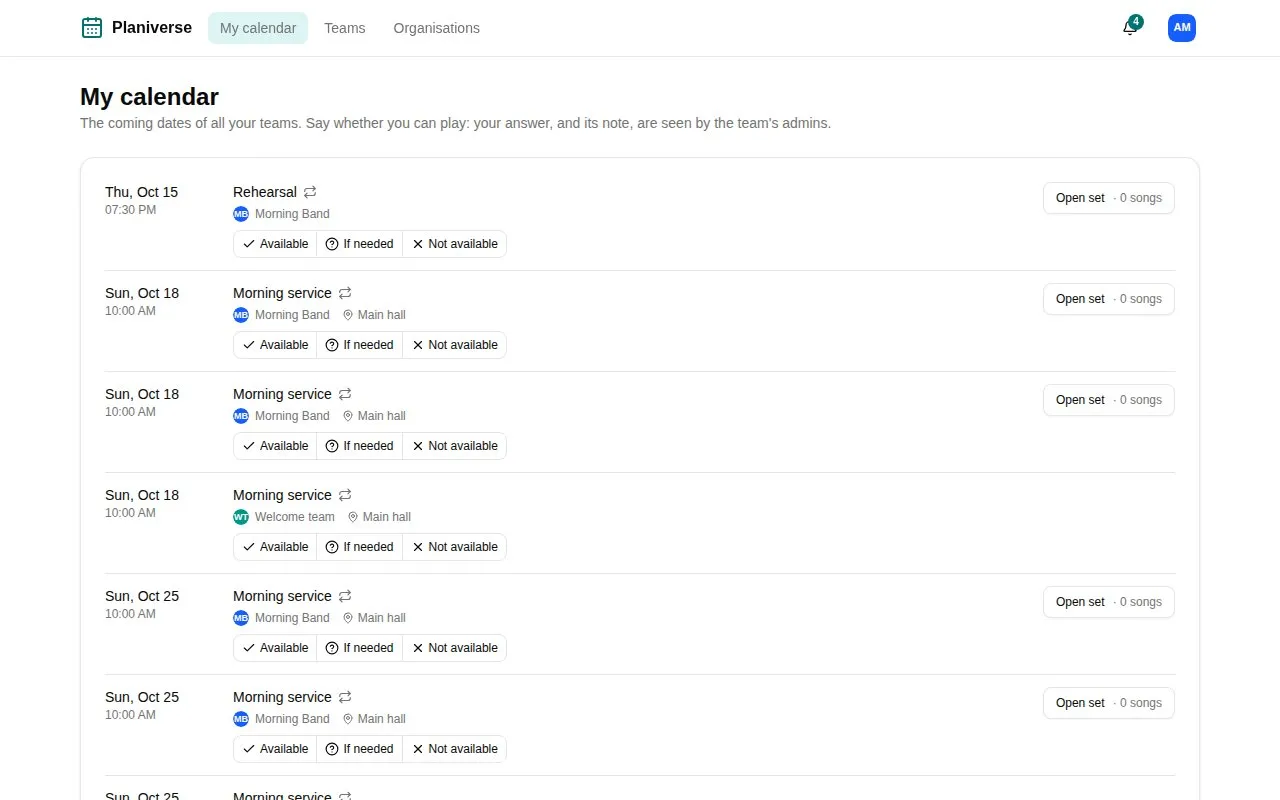
Section titled “What’s there”- My calendar: the coming dates of all your teams and groups, answered there - Available, If needed, Not available - and your days away.
- Teams: every team and group you’re in, those in no organisation too - a sub-group under its group, when you’re in both.
- Organisations: the ones you’re in, their groups, members and events, as in Songverse (see Organisations).
- A team’s or group’s page: its calendar, members and positions, and for its admins the same tools as in Songverse - events, answers asked for, the line-up, invite links.
A date of a team that uses Songverse shows its set: Open set opens it in Songverse. Sets are planned there, not in Planiverse.
An invite link to an organisation or a group, opened on Planiverse, joins you there.
Notifications
Section titled “Notifications”The bell beside your picture lists your notifications, as in Songverse. Account settings also chooses how each kind reaches you, and turns them on for the device you’re on. Notifications about a group that only plans, or an event you host, are Planiverse’s: their emails open Planiverse, and they go to the devices you turned on in Planiverse (to your others if there are none). The rest are Songverse’s: pressing one about a song, a set or your people opens it in Songverse. See all opens the Notifications page.