

For admins
Reviewers
Section titled “Reviewers”A reviewer - someone with a role that allows reviewing, such as the built-in Reviewer role (see Roles), or a global admin - checks songs submitted to the global catalogue. The Review page lists what’s waiting. For each song you can:
- Approve and publish it, optionally with a trust label shown on the global song (“Official publisher text”). The song itself moves to the catalogue, credited to whoever it came from; their files stay theirs;
- Merge into a similar song already in the catalogue: theirs is folded into it - their versions, files and sets move over, their way of singing it becomes their version of it, and their changed details come to you as a suggestion;
- Ask for changes, or Reject it, with a note for the submitter.
You can’t review your own submissions. Global admins can also Publish now their own songs without a review.
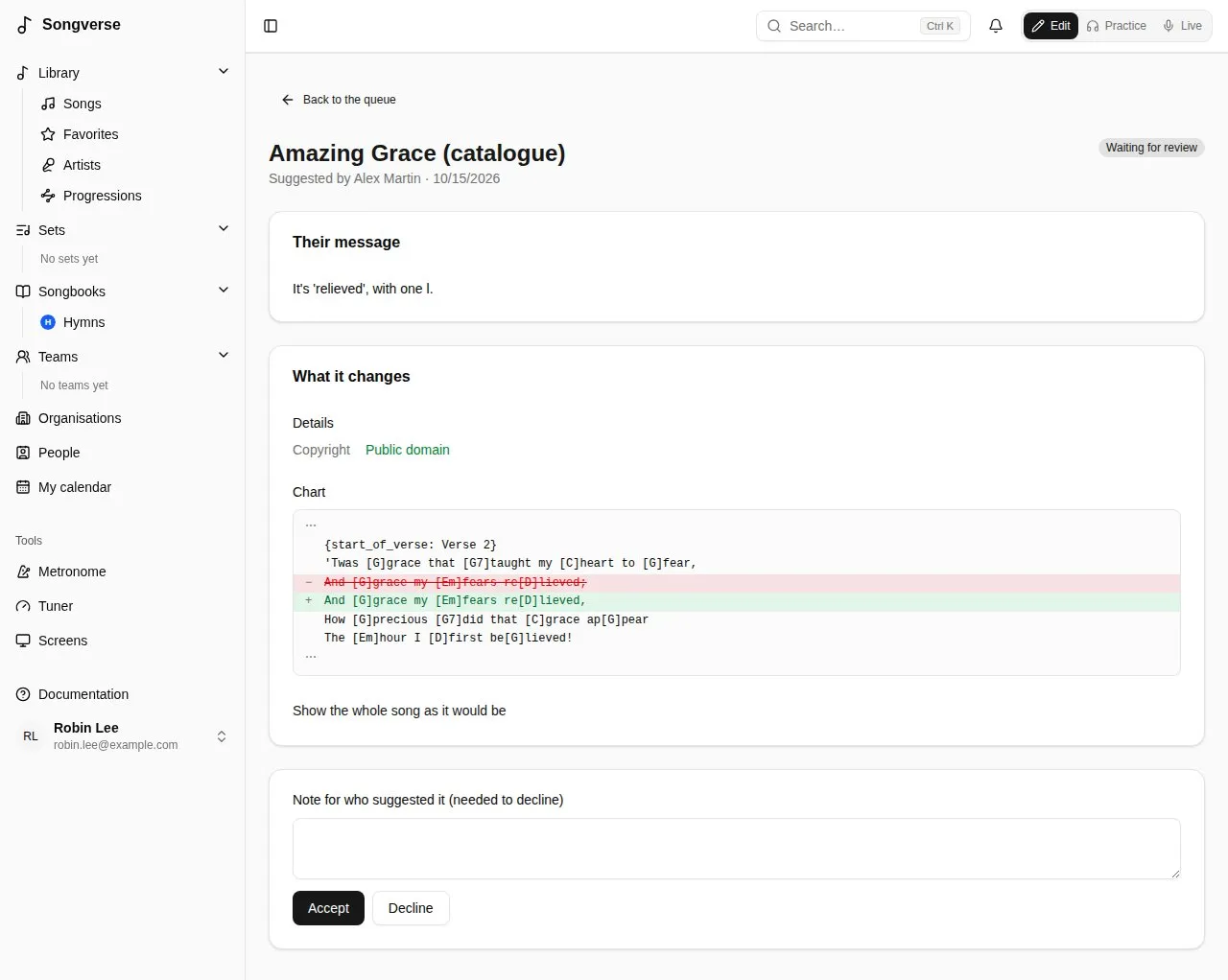
The Review page also lists Suggested changes to catalogue songs (see Suggesting a change). Each shows what it changes, from the song as it was when it was suggested; Accept saves it to the song in its author’s name, Decline needs a note. If the song was changed since in the same place, it says where, and it can only be declined.
Global admins
Section titled “Global admins”Global admins manage the whole server from Dashboard, in the sidebar’s Admin section (reviewers find Review there).
Everyone with an account, with their status, roles (their teams’ in outline), songs and storage. For each user you can:
- Roles… - tick the roles they have (see Roles); the ones they get from their teams are listed below, to change in Teams;
- Ban them (they’re signed out and can’t sign in until unbanned; their content stays);
- Delete user, choosing what happens to what they personally own: delete it now, or keep it for a transfer link. Whoever opens that link while signed in, before it expires, becomes its owner.
Below the list, Sign-up and invitations says who can create an account. With Only invited people can sign up ticked, someone signing up is refused unless they were invited here, or came through a team’s invite link or a set’s share link; existing accounts aren’t affected. It shows where the setting comes from - saved here, the SIGNUP_INVITE_ONLY environment variable, or the default (anyone can sign up) - and Use the environment variable goes back to the server’s configuration. The bootstrap admins (BOOTSTRAP_ADMIN_EMAILS) can always sign up.
To invite someone, enter their email under Email to invite and choose Invite: with Email them the link ticked they’re sent a link, and the link is also shown, to send another way. It opens a page with their email filled in, and works for two weeks, for that email. The invitations are listed as Waiting, Signed up or Expired: Copy link copies a waiting one’s link, Send again sends a new link for another two weeks, and Remove cancels it.
Every team, with its roles, members, songs and storage pool: what’s on a team’s songs counts there, whoever uploaded it, not against the uploader. Roles… gives the team roles: each one applies to every member, and a storage tier sets the team’s pool.
Organisations
Section titled “Organisations”Whether the server has organisations - a church, a club - grouping teams to plan together (see Organisations). Under Organisations on this server:
- None: Songverse on its own - the default; nobody sees organisations;
- One: everyone who signs in is in it - Create the organisation (a Name, and Its admin’s email (optional) if it isn’t you), once;
- Several, each kept apart - global admins create them under New organisation; with Anyone can create an organisation ticked, anyone can, from Organisations in the sidebar.
It shows where each setting comes from - saved here, the ORGANIZATION_MODE and ORGANIZATIONS_OPEN environment variables, or the default - with Save configuration and Revert to environment variables. All organisations lists them with their teams, members and admins; Delete organisation leaves their teams on their own.
Below the page’s title, it says where Planiverse is, when it’s deployed beside Songverse (an address set where it’s deployed, PLANIVERSE_URL), or that it isn’t.
The one place that says what people may do beyond their own and their teams’ songs. A role can allow:
- Review submissions - the global catalogue’s queue (see Reviewers);
- Split recordings into stems, with its own Separations per person in 30 days or, left empty, the one in Stem separation;
- Upload audio files - recordings and stems. People who sign up don’t have it, but can still record in Songverse; the built-in Audio uploads role allows it, and was given to everyone who had an account when it came in;
- Keep lossless originals - a WAV, FLAC or AIFF they upload keeps its original, as FLAC (a WAV at its own sample rate and bit depth), beside the Opus copy that’s played; without it, only the Opus copy is kept (see Audio files);
- A storage tier - how much a person may store, or a team’s pool.
Reviewer, Stem separation and Audio uploads are built in: they can be edited but not deleted. New role adds your own, such as “Storage 10 GB”. Give roles to people in Users and to teams in Teams. Someone can do what any of their roles allows - their own and their teams’ - and the largest limit wins; without a storage tier, the defaults in Storage apply. Global admins can do everything. Changes take effect straight away.
Instruments
Section titled “Instruments”The instruments people can pick as what they play (see Roles). Under Added, add one the list lacks with its Name and, if it differs, its name In French (Add instrument); Rename changes it, Remove takes it away, and off whoever had picked it. On the list already shows the built-in ones.
How Songverse sends email (verification, password reset) through Resend, and whether Google sign-in is offered. Settings saved here take effect immediately; Revert to environment variables goes back to the server’s configuration.
It’s optional: teams and organisations can run their own. Teams and organisations may connect their own Songverse Sonic server lets their admins connect one on their page (see Your own stem separation server); their songs are then split there by their members, within the limit they set, with no role needed. On private or local addresses too allows addresses on this server’s network (http://192.168.1.20:8000); otherwise an address must be public and start with https://. Connected lists the servers connected, whose they are and how many separations each has done.
Security
Section titled “Security”How the API protects itself. Limit requests caps how many requests it takes a minute: per signed-in user, per address before signing in, and a tighter number for the expensive ones (uploads, artwork and artist lookups, joining by link). Over a limit, the request is refused until the minute is out and the app says “Too many requests, try again in a moment”. Proxies in front of the API says how many proxies (a load balancer, Traefik…) sit before it, so it counts each visitor by their own address rather than the proxy’s. API documentation decides who can read /api/docs: anyone, or only global admins. Content-Security-Policy tells browsers which scripts, connections and frames Songverse’s pages may use, so a script slipped into a page wouldn’t run: Enforced (the default), Only reported - nothing is refused, and what would have been goes to the web server’s log, to try a change first - or Off. Each setting shows where it comes from - saved here, an environment variable, or the default - and Revert to environment variables goes back to the server’s configuration.
Collaboration
Section titled “Collaboration”Live co-editing lets people who can change a song type in it together in the Editor, each seeing what the others type as they type it (see Typing together). It’s off until you turn it on; off, each person edits on their own and is told when someone else saved. It takes effect for songs opened after the change. The setting shows where it comes from - saved here, the LIVE_CO_EDITING environment variable, or the default - and Revert to environment variables goes back to the server’s configuration.
Notifications
Section titled “Notifications”What Songverse tells people besides the bell in the app. Send notifications by email is off until you turn it on: emails go through the Resend account set under Auth, the same as account mail, and its free tier has a sending limit. Once on, each person chooses which kinds they’re emailed about in their account settings; one email covers notifications made together (an event that changed several dates), and an address that isn’t verified gets none. Push to devices sends notifications to people’s phones and computers through their browser’s push service (Google’s, Mozilla’s, Apple’s, Microsoft’s - never anywhere else). It needs a VAPID key pair: Generate keys makes one and keeps it (the private key encrypted, never shown again), or paste your own, with a Contact (mailto: or https:) the push services can reach. Generating new keys later means everyone turns their devices on again. The private key field stays empty once saved (it’s never sent back) and says Saved and hidden. A push service’s refusal shows on the person’s device, and a test that reaches no device fails in Server maintenance’s background jobs, with why; so does a Worker that can’t decrypt the saved key (another SETTINGS_ENCRYPTION_KEY). Each setting shows where it comes from, and Revert to environment variables goes back to the server’s configuration.
Storage
Section titled “Storage”Where uploaded files are kept (object storage such as Cloudflare R2, or local disk for development), how much is used, the largest song file of each type (File size limits: PDF, ChordPro, MusicXML, ABC, Text, Image, Audio, Other - 25 MB, audio 50 MB, unless set here, up to 500 MB, since an upload is held in the server’s memory until it’s stored; Reset goes back to the built-in one; global admins aren’t held to them, only to the 500 MB), and the default storage limits: Default limit per user (MB) and Default limit for a team’s pool (MB), for whoever no storage tier (see Roles) gives a limit. What’s on a team’s songs counts toward the team’s pool; the rest of what someone uploads, toward their own. Global admins have no limit.
Stem separation
Section titled “Stem separation”This Songverse’s own server for splitting recordings into stems (a Songverse Sonic server, see Separating a recording into stems): its API address and API key (leave the key blank to keep the current one), the Quick pass model (htdemucs; asking for 6 parts uses htdemucs_6s), Then a finer pass and its model (htdemucs_ft), which replaces the quick stems when the server has time (not for 6 parts: htdemucs_ft splits into 4), and the Separations per person in 30 days (empty: no limit). Test connection checks the address and key and lists the server’s models. The server must be able to reach the API back to say when stems are ready; otherwise Songverse checks every 2 minutes.
Who can use it: whoever has a role that allows it - the built-in Stem separation role, or one of yours - given to them or to their team (see Roles); they can split the recordings of the songs they can edit and of their team’s songs. Global admins always can. Revert to environment variables goes back to the server’s configuration.
Catalogs
Section titled “Catalogs”Manages the published songbook catalogs (see Songbooks): add one, edit its entries in a table, import or export them as CSV or JSON.
Server maintenance
Section titled “Server maintenance”The Metadata page has two maintenance tasks: Check status compares the database migrations on the server with what’s applied, and Run seed script re-applies the built-in data (tag categories, tags, tuning presets). It’s safe to re-run.
Background jobs shows whether the Worker - the server process that does the slow work in the background (finding artwork and artists, songbook uploads, recorded takes, the hourly clean-up of expired transfers) - is running, how many jobs wait in each queue or failed, and the last ones’ results, refreshed every few seconds. The admin’s backfills have a queue of their own, so a new song’s lookups never wait behind one. It also warns when the Worker has no SETTINGS_ENCRYPTION_KEY, or not the API’s: it then can’t use the secrets saved here (the providers’ keys, storage). It says which ffmpeg the Worker has, which turns recorded takes into Opus (see Recording a part); without it, takes stay as recorded (WAV), about eight times bigger. Scheduled lists the jobs that run on their own - Sets for team calendar dates every 6 hours, Calendar reminders every hour, Deleting old notifications (read after 90 days, unread after a year) every day - with Run now for each. Repeated sections looks through every song for sections written out again (see Repeated sections): Count says how many songs have some, of each kind, without changing anything; Link the same and transposed links those in every song (each kept in its song’s history), leaving the ones with chords or lines of their own to the song’s editors. Failed jobs lists the jobs that failed, with why; Clear failed jobs empties that list, in every queue. No Worker is running means jobs wait: see Deploy.md in the repository to set one up, or to let the API run them itself (JOBS_IN_API).
Metadata providers lists where songs and artists are looked up - MusicBrainz, Apple Music, Deezer and Spotify - in the order they’re asked. Move one with the arrows, and tick what each is asked for, among what it can do: Song info (a song’s Auto detect, see The library), Album artwork (a song’s image), Artist pictures and Artist bios (MusicBrainz’s are Wikipedia’s, found through Wikidata). (needs a key) beside one means it’s ticked but can’t be asked until its settings have a key. Auto detect’s matches closest to the title and artist come first, then the song’s first release, and this order breaks what’s left; a new song’s artwork and an artist’s picture come from the first provider here, among those ticked, that has one. Save configuration keeps the list; Revert to environment variables goes back to METADATA_PROVIDERS (those listed, in order, for all they can do, like musicbrainz,deezer), or to all four in this order without it.
Each provider’s Settings open under it:
-
MusicBrainz: the Contact sent to MusicBrainz with each request, as it asks - a web address or an email address (else
MUSICBRAINZ_CONTACT). -
Apple Music: the Apple Music storefront (country) searched - two letters, like us or fr - and, optionally, the Apple Music API’s MusicKit key. Without a key, Apple Music is searched through iTunes Search, which needs none. With one, it’s searched through the Apple Music API: the same songs, plus their ISRC, who wrote them, and artist pictures. Create a MusicKit key in your Apple Developer account (Certificates, Identifiers & Profiles > Keys), then enter its Team ID, Key ID and Private key (.p8) - the whole file, BEGIN and END lines included. The private key is kept encrypted and never shown again: leave it blank to keep the current one. Until you have a key, Developer token URL (without a key) can take an address that answers with a developer token (
{"token": "eyJ…"}, orAPPLE_MUSIC_TOKEN_URL); each token is kept until it expires. Its tokens are signed by whoever runs that address, not your Apple account, so they can stop working at any time - a key, once saved, is used instead. Test connection tries a search with the key or the token. Revert to environment variables clears both and goes back toAPPLE_MUSIC_TEAM_ID,APPLE_MUSIC_KEY_IDandAPPLE_MUSIC_PRIVATE_KEY(orAPPLE_MUSIC_TOKEN_URL), or to iTunes Search without them. -
Deezer needs no key.
-
Spotify needs an app: create one on Spotify for Developers (developer.spotify.com > Dashboard > Create app, with the Web API) and enter its Client ID and Client secret - kept encrypted and never shown again; leave it blank to keep the current one - and the Market (country) searched (else
SPOTIFY_MARKET, else the Apple Music storefront). No one signs in to Spotify: Songverse asks as the app. Its matches bring the song’s Spotify link and ISRC. Test connection tries a search; Revert to environment variables goes back toSPOTIFY_CLIENT_IDandSPOTIFY_CLIENT_SECRET, or to not asking Spotify without them.
YouTube holds the YouTube Data API’s key, which lets a song’s YouTube link be searched for on its Links tab (YouTube isn’t asked for song info). Create a key in the Google Cloud console (APIs & Services > Credentials > Create credentials > API key, with the YouTube Data API v3 enabled) and enter it as API key - kept encrypted and never shown again; leave it blank to keep the current one. Each search uses 100 of the key’s 10,000 free daily units: about 100 searches a day. Test connection tries a search; Revert to environment variables goes back to YOUTUBE_API_KEY, or to no YouTube search without it.
Song artwork turns a song’s artwork on or off (Find artwork for songs): found on its own for a new song, from the providers ticked for Album artwork. Save configuration keeps it; Revert to defaults goes back to on. Find artwork for songs without one looks up to 50 songs at a time, newest first, in the background: its result shows under Background jobs. A song nothing matched isn’t tried again; one whose lookup failed (a provider down or refusing) is, next time. See Artwork.
Artist pictures and bios turns them on or off (Look up artists’ pictures and bios): a picture from the providers ticked for Artist pictures, and a short bio from Wikipedia, found through MusicBrainz and Wikidata, in English and French. Save configuration keeps it; Revert to environment variables goes back to ARTIST_LOOKUPS (off turns them off), or on without it. Look up artists not looked up yet asks about up to 25 at a time, the most recently credited first, in the background: its result shows under Background jobs. An artist whose lookup failed is tried again next time. See Artists.