

Organisations
An organisation is the church, club or group your teams are part of: the music team, the welcome team, the tech team… It’s where they plan together - who hosts each event, which groups each one needs - in Songverse, or in Planiverse, the planning on its own, where the server has it. Songverse works without any: a server has organisations only if its admins turned them on (see Admin), and until then you won’t see them.
Where to find them
Section titled “Where to find them”Organisations, in the sidebar, lists the ones you’re in - with how many teams and members each has, and whether you’re one of its Admins. Depending on the server:
- One organisation: everyone who signs in is in it. You can’t leave it.
- Several: you’re in the ones you were invited to, or whose teams you’re in. If the server lets you, Create an organisation (a Name and an optional Description, then Create) makes one, run by you.
An organisation’s page
Section titled “An organisation’s page”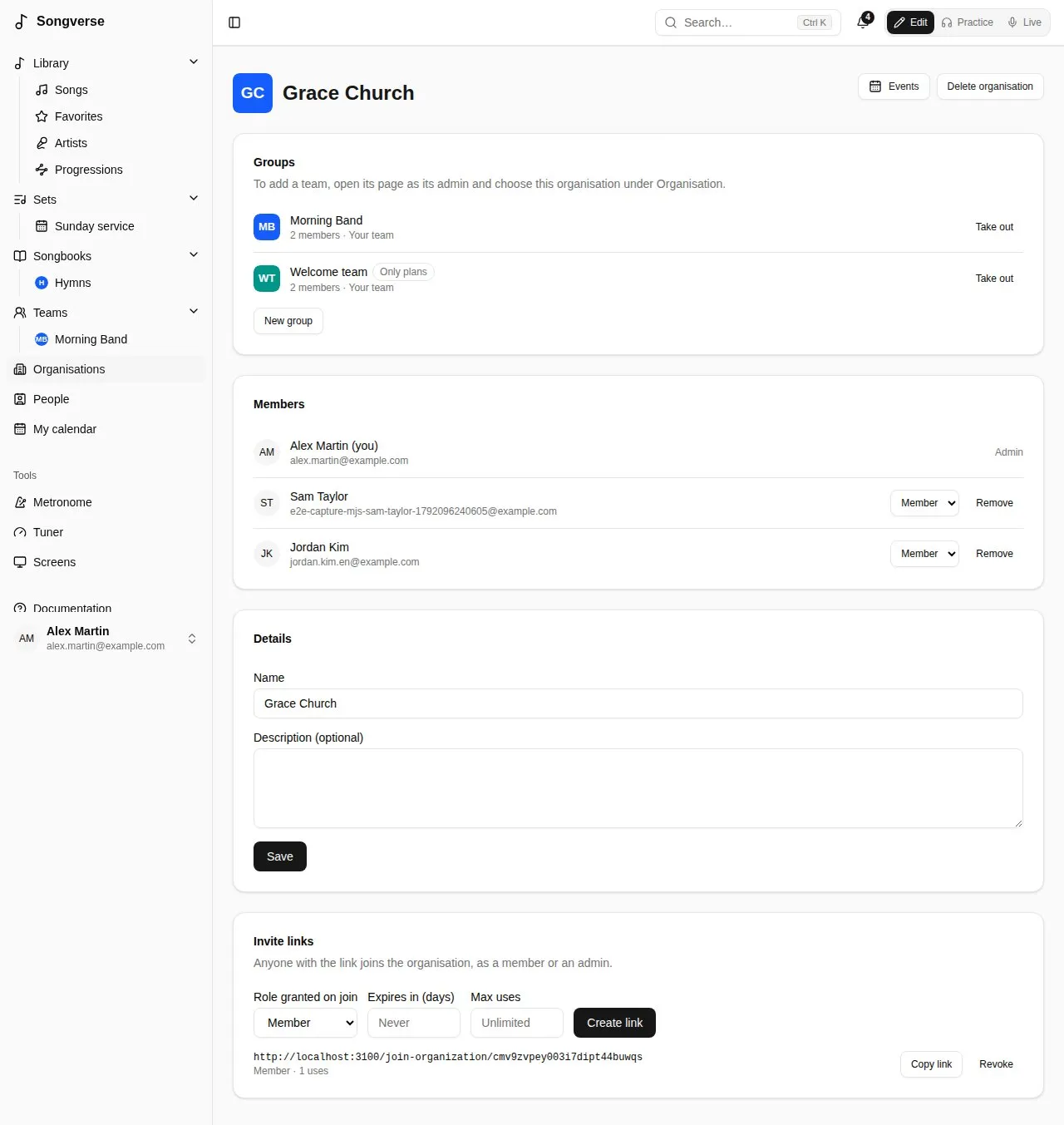
Everyone in it sees its Groups - each under the one it’s in, those that don’t use Songverse marked Only plans, yours marked Your team and opening its page - and its Members.
Its admins also:
- change its Name and Description under Details, then Save;
- choose who’s an Admin or a Member, and Remove someone - who leaves its teams too (if they’re the only admin of one, make someone else its admin first);
- Take out a team: it carries on, on its own, with its members and songs;
- make Invite links: with a role, an expiry and a number of uses, like a team’s (see Teams). Whoever opens one joins the organisation, after signing in or creating an account - even on a server where only invited people can sign up;
- connect its own Songverse Sonic server under Stem separation, when this Songverse allows it: its teams’ songs are split into stems there, unless a team connects its own (see Your own stem separation server);
- Delete organisation: its teams stay, on their own.
Leave organisation takes you out of it and its teams; its only admin makes someone else an admin first.
Putting a team in it
Section titled “Putting a team in it”On a team’s page, its admins choose the organisation under Organisation - one they’re an admin of - then Save. The team’s members join the organisation, and so does anyone who joins the team later. The team’s page then says Part of the organisation. None (a team on its own) takes it out.
Groups
Section titled “Groups”An organisation’s groups are its teams: the music team, but also a welcome team or a cleaning rota. Its admins make one with New group: a Name, the group it goes Under (or none, at the top), and whether it Uses Songverse, then Create group - you’re its admin, and its page opens.
- A group that Uses Songverse is a team as you know it: its songs, songbooks and sets.
- One that doesn’t (the default for a new group) only plans: it has its calendar, its members and its positions, but no songs, songbooks or sets, and its dates have no set. It isn’t listed among your teams in Songverse; you find it on the organisation’s page.
On a group’s page, its admins change both under Group, then Save. A team with songs, songbooks or sets keeps using Songverse until they’re moved or deleted. A group taken out of the organisation becomes a team of its own again, using Songverse.
A group’s admins make groups under it too: New sub-group on its page, with a Name and whether it Uses Songverse, then Create group - you’re its admin.
Being in a group doesn’t put you in the group above it: each group has its own members.
Positions
Section titled “Positions”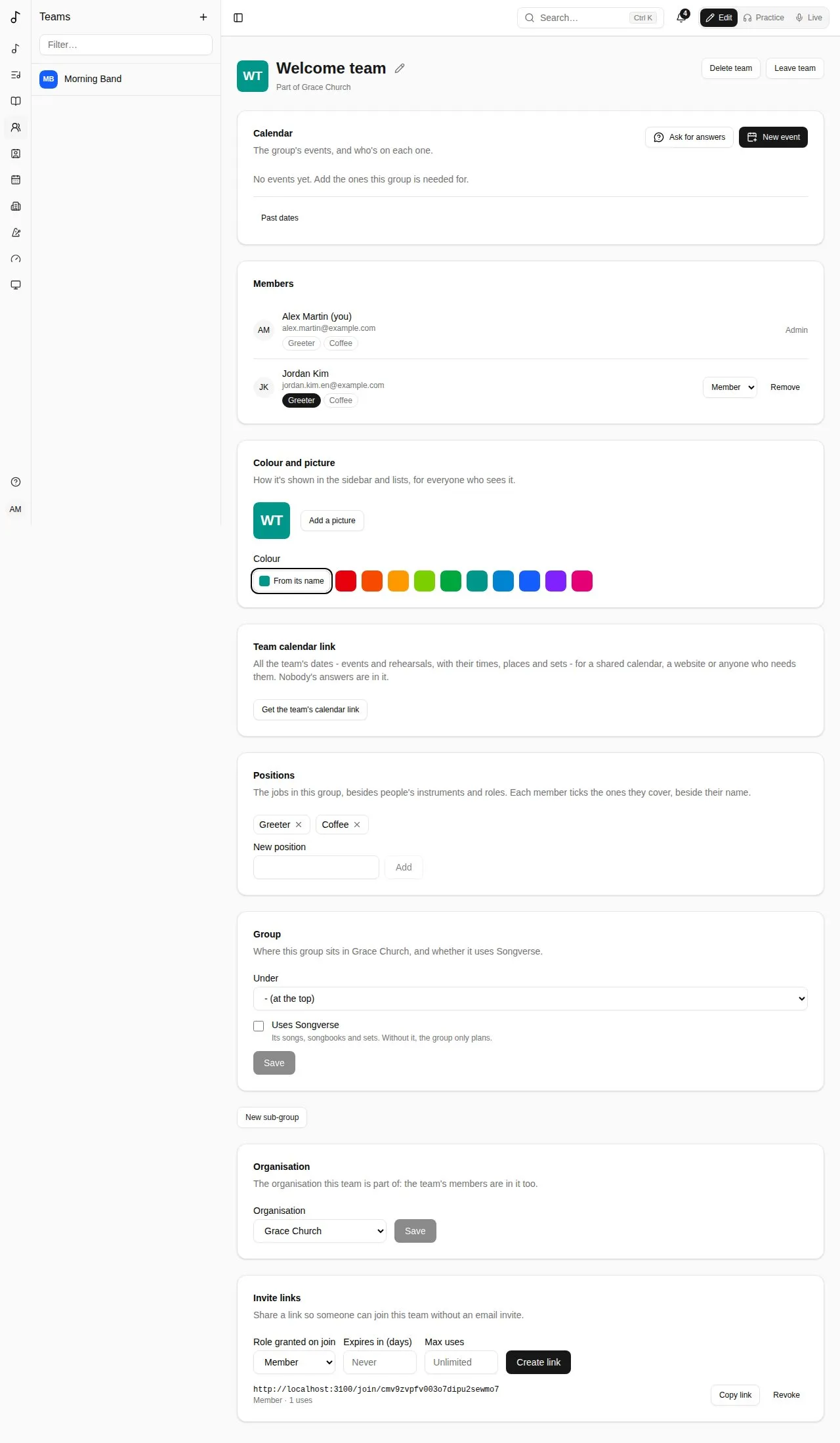
Besides the instruments and roles people list for themselves, each group has Positions of its own - “Greeter” and “Coffee” for a welcome team, “Hall” and “Kitchen” for a cleaning rota. Its admins add them under Positions (New position, then Add) and remove them with the cross.
Beside each member’s name, the group’s positions show: tick the ones you cover by clicking them. The group’s admins can tick them for anyone; others see only the ones each member covers.
An event of the group asks for them under Parts needed: Add a part lists This group’s positions first (see Parts needed). A position is covered by the members who ticked it, and its name follows when it’s renamed; a position an event still asks for can’t be removed.
Events
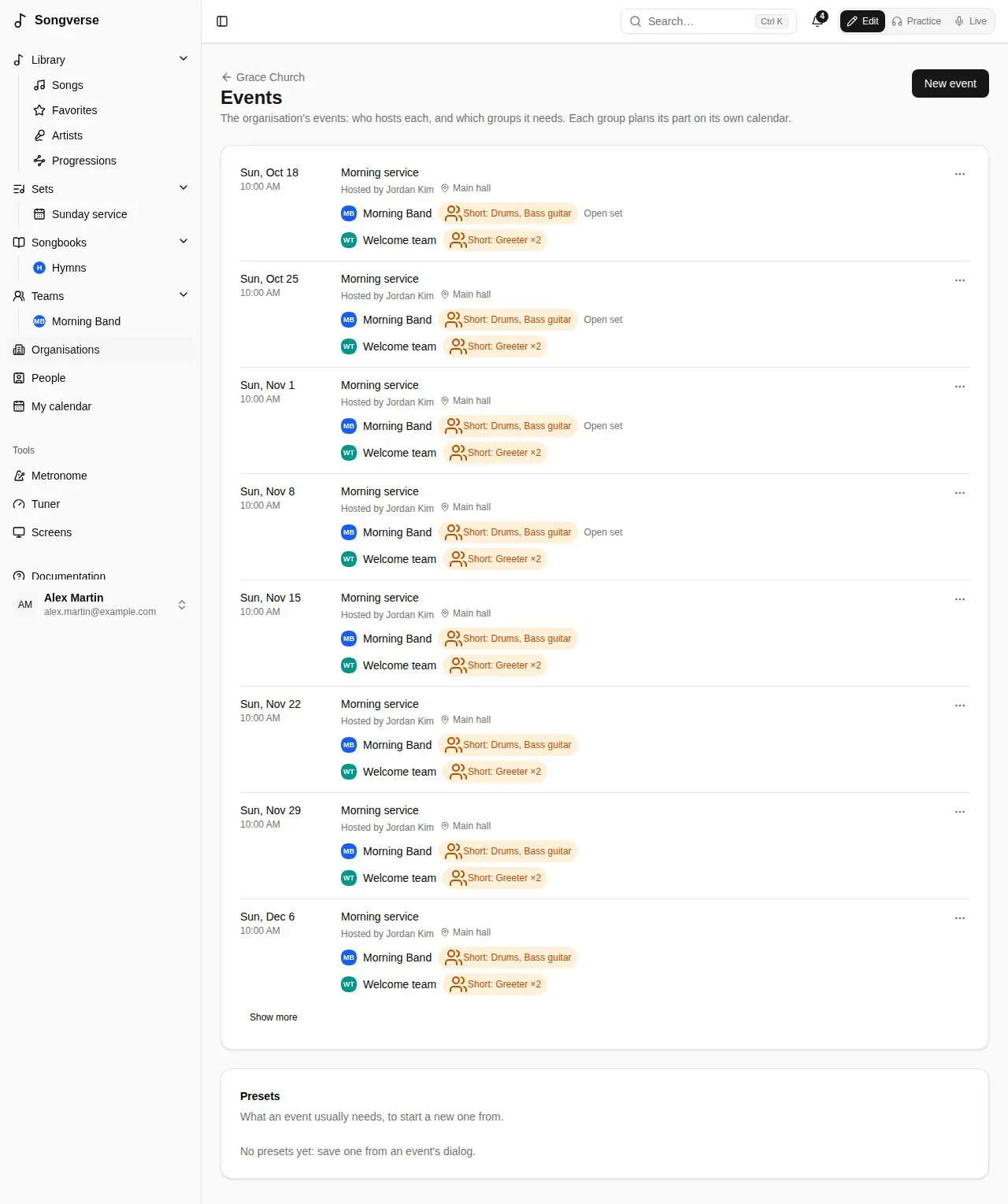
Section titled “Events”An organisation’s events need several of its groups: a Sunday service needs the music team’s drums and bass, two greeters from the welcome team, someone on the sound desk. On the organisation’s page, Events lists the coming dates (Show more for later ones), each with its host and every group it needs.
Its admins make one with New event: its Title, first date, start time, length, time zone, Repeats and Place (optional) as for a team’s event, its Host - one of the organisation’s members, who’s told - and under Groups needed, Add a group for each, with the parts it asks of it (its positions, instruments, roles or names; see Parts needed) and, if you like, its Call time (minutes before): the musicians an hour early, the welcome team a quarter of an hour. Save event puts the event on each group’s calendar: the group’s admins fill its line-up as for any of its events, a music team’s date gets its set, and those signed up get their reminders.
- On a group’s calendar, the event is marked Planned by the organisation (and its host). Its date, time and place are set on the organisation’s Events; the group’s admins choose only what it needs from them, under Parts needed, and its call time.
- On the organisation’s Events, its admins and the event’s host see how each group’s parts are covered (Short: Drums, or All set), change the event with Edit event, and Cancel this date - or restore it - for every group at once. Others see the groups and how many are on each.
- Only the admins choose another host (who’s told), and Delete event, for every group. A group removed from Groups needed loses its part; a group taken out of the organisation keeps it, as its own event.
Presets keep what an event usually needs: in an event’s dialog, Save as preset under a Preset name. New event then starts from one with Preset, which fills its title, time, place and groups. The admins remove presets under Presets.